New student? Do these 3 things first
Moodle LMS
Your courses, assignments, and grades — all online
For StudentsLogging In at the Computer Lab
Open Google Chrome & click your profile icon (top-right corner)
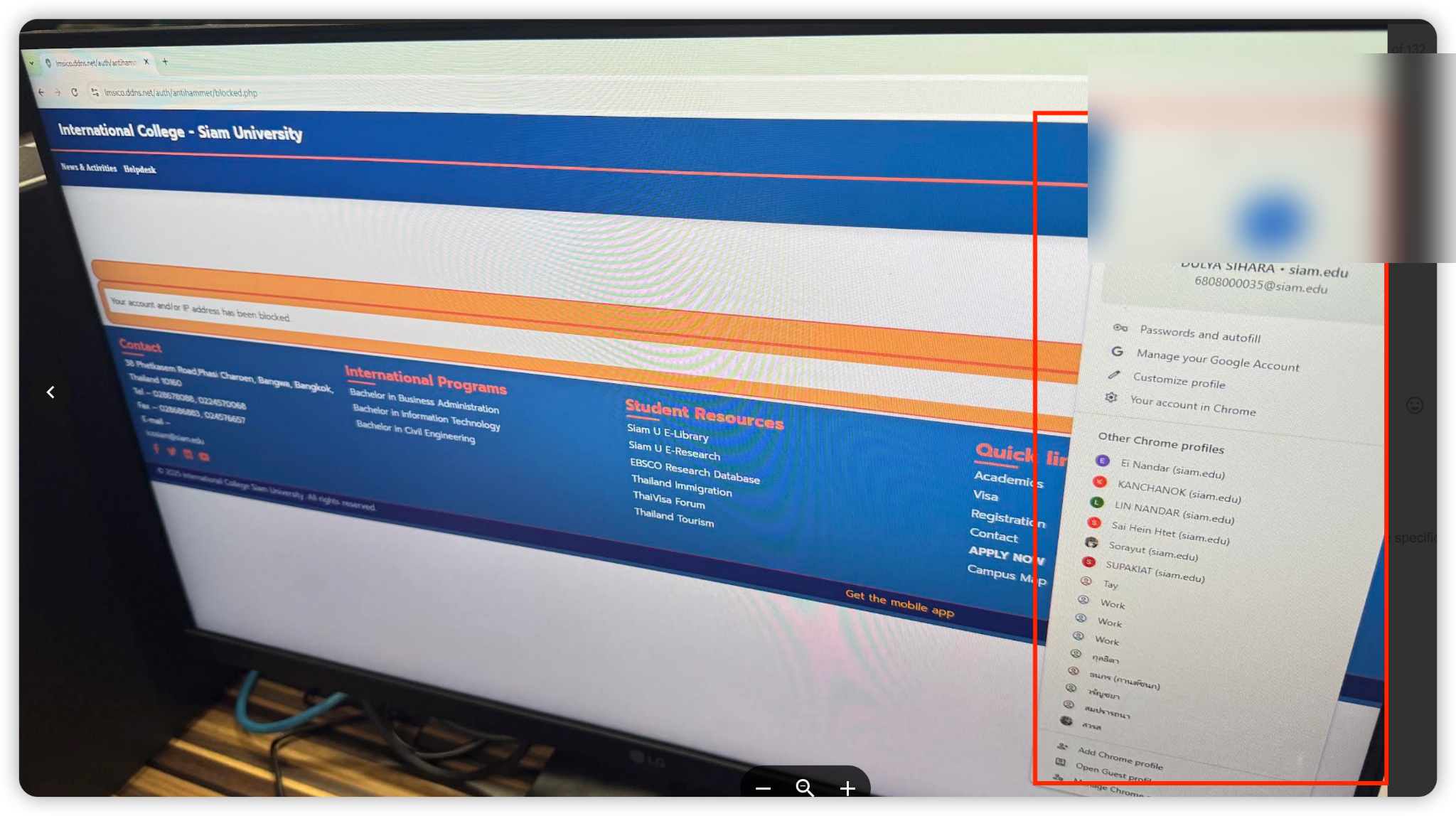
You will see a panel showing the currently signed-in Google accounts on this computer.
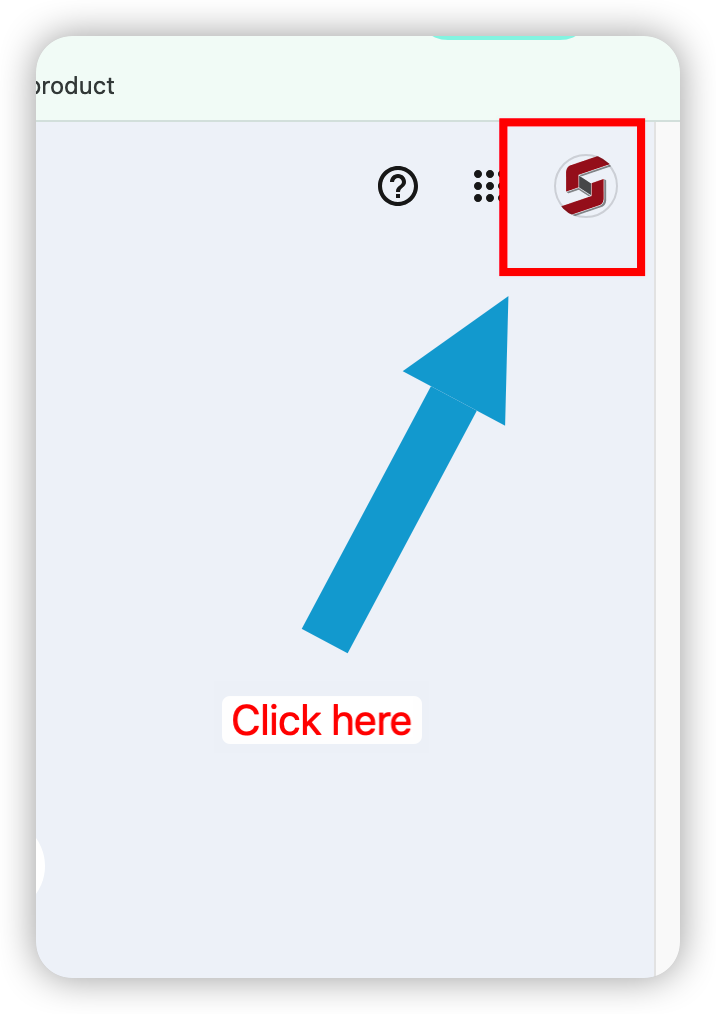
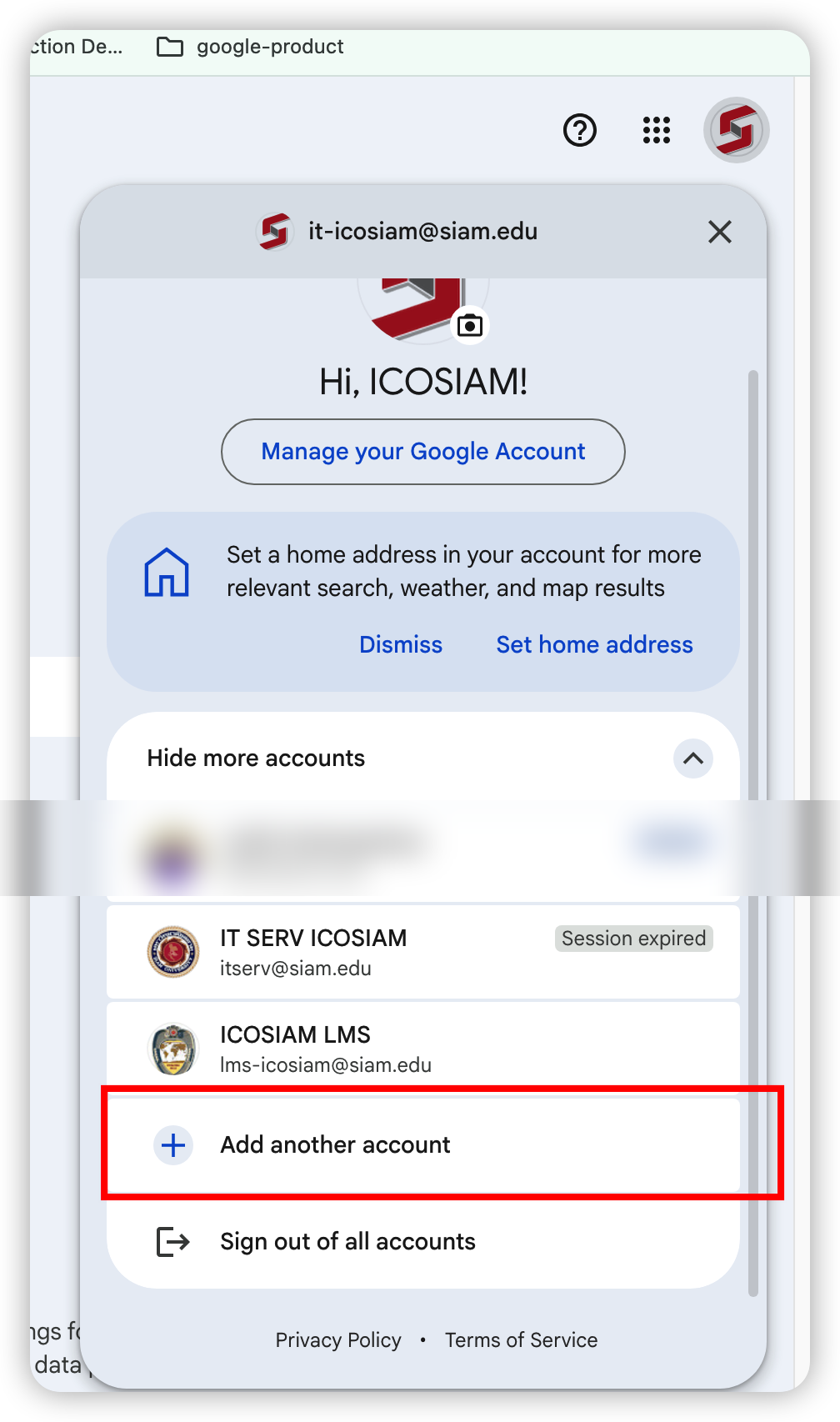
Click "Add another account"
The IT Lab computers may already have multiple accounts. You must add your own university email (e.g. 670S10022@siam.edu).
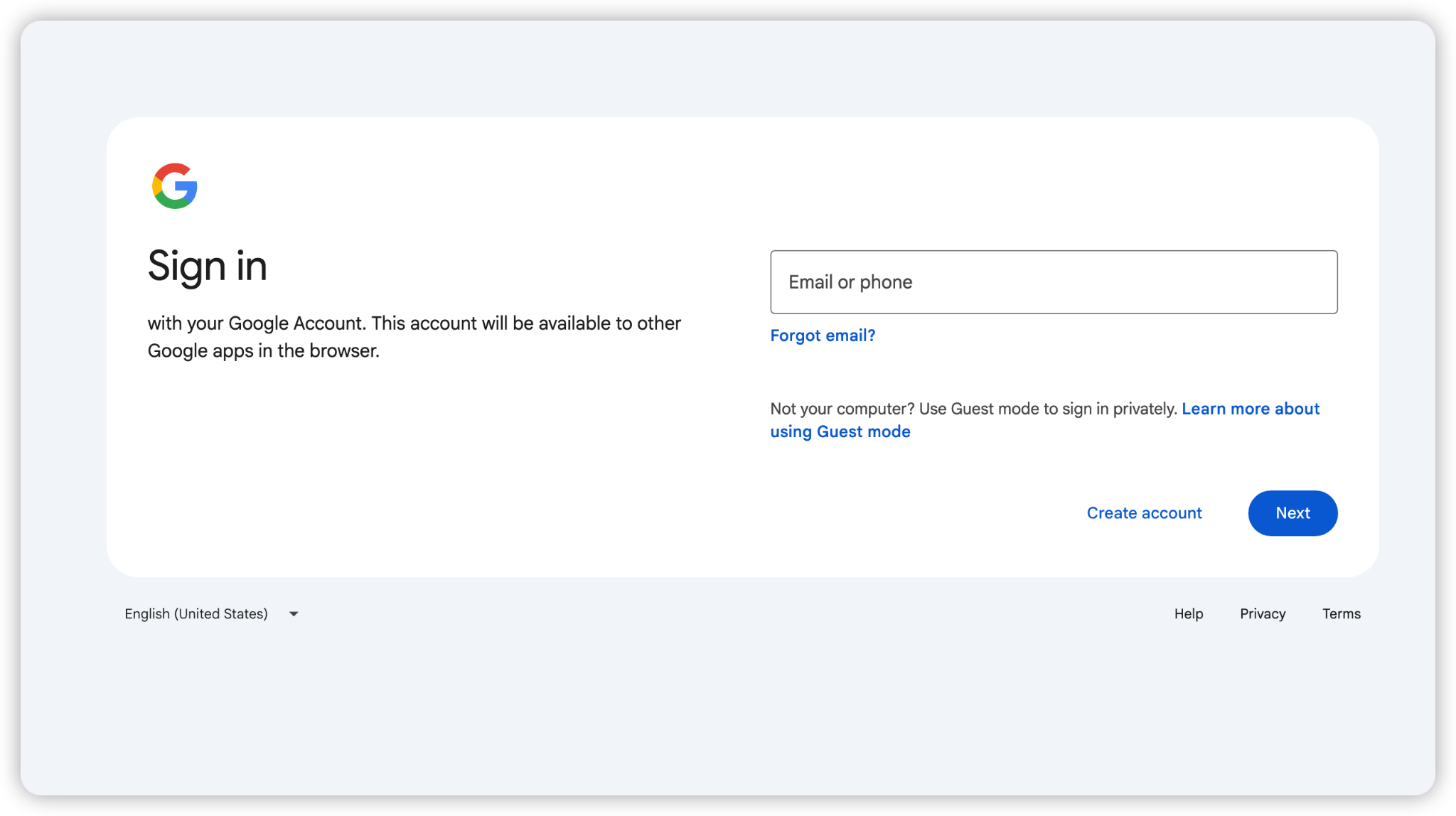
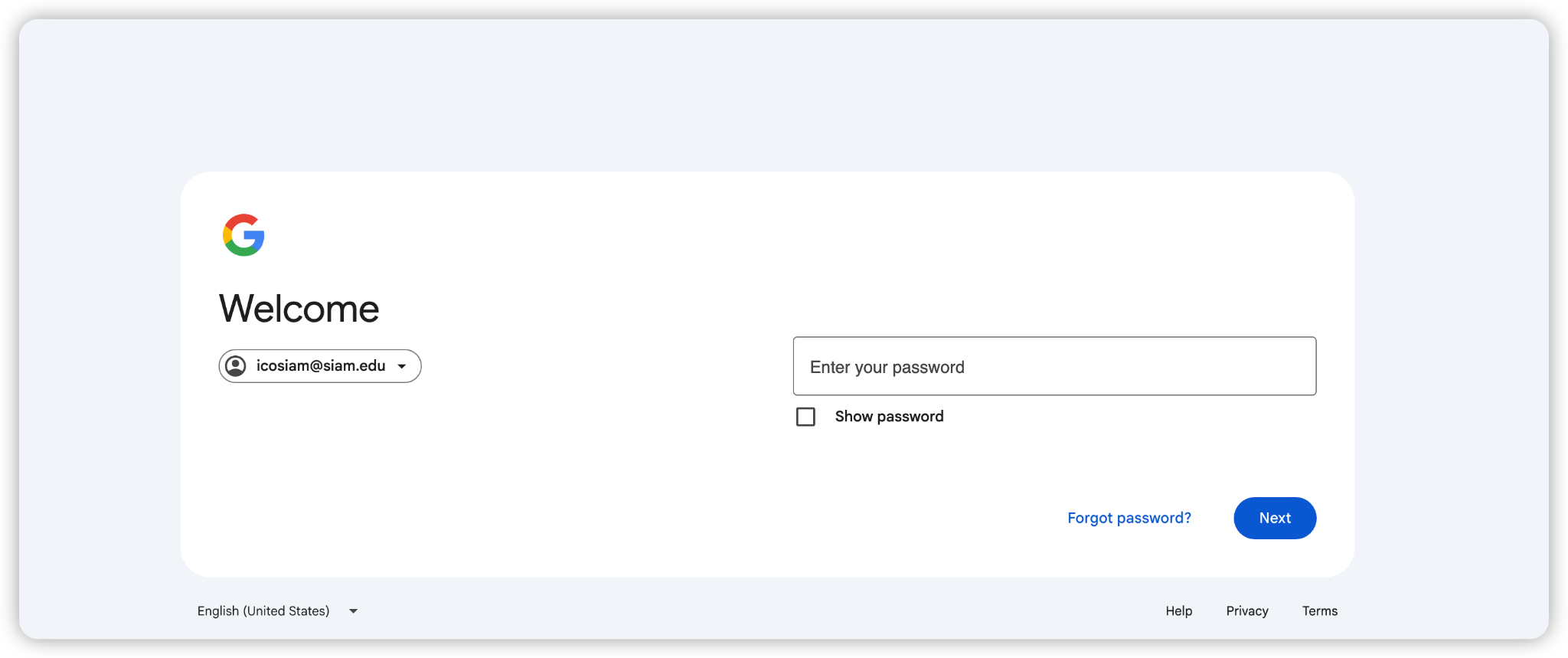
Sign in with your university Google account
Enter your full university email address, then your password on the next screen. Your email format: StudentID@siam.edu
Note: For a forgotten @siam.edu password email it-icosiam@siam.edu.
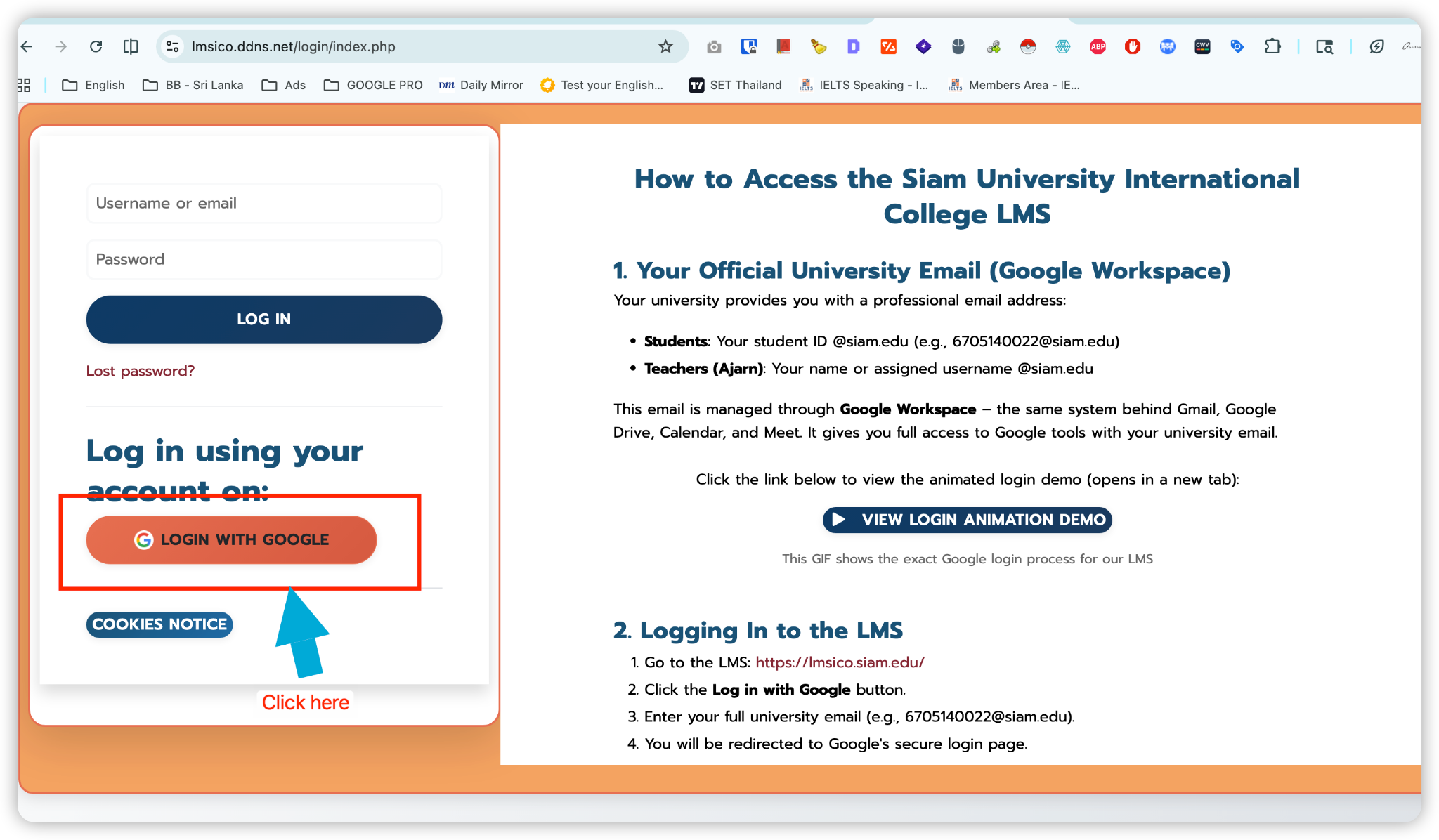
Go to Moodle & click "Login with Google"
Open https://lmsico.siam.edu in Chrome. Click the orange LOGIN WITH GOOGLE button — do not type a username/password here.
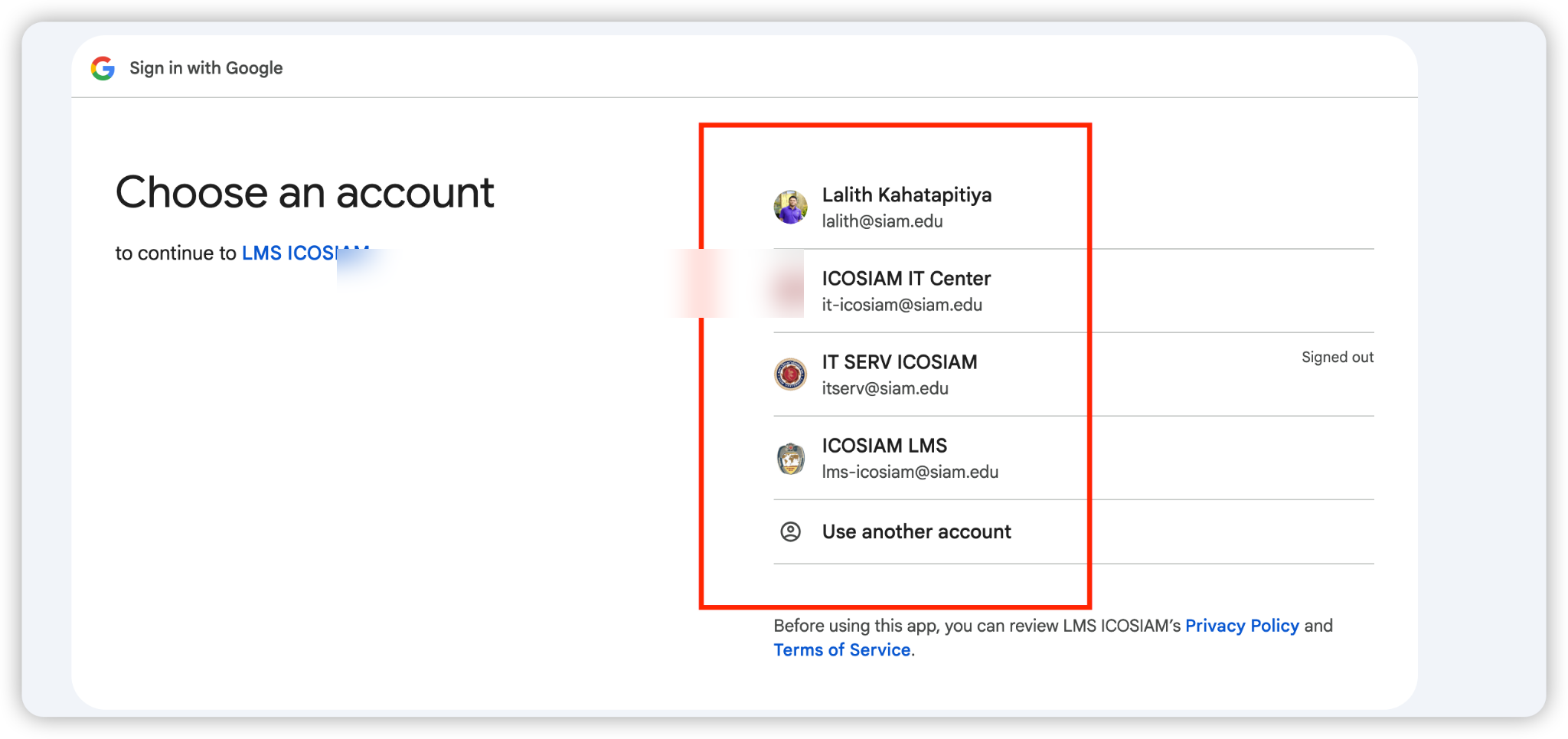
Choose your email from the account list
A "Choose an account" screen will appear. Select the one that shows your student email. Avoid clicking other accounts that belong to the IT Lab.
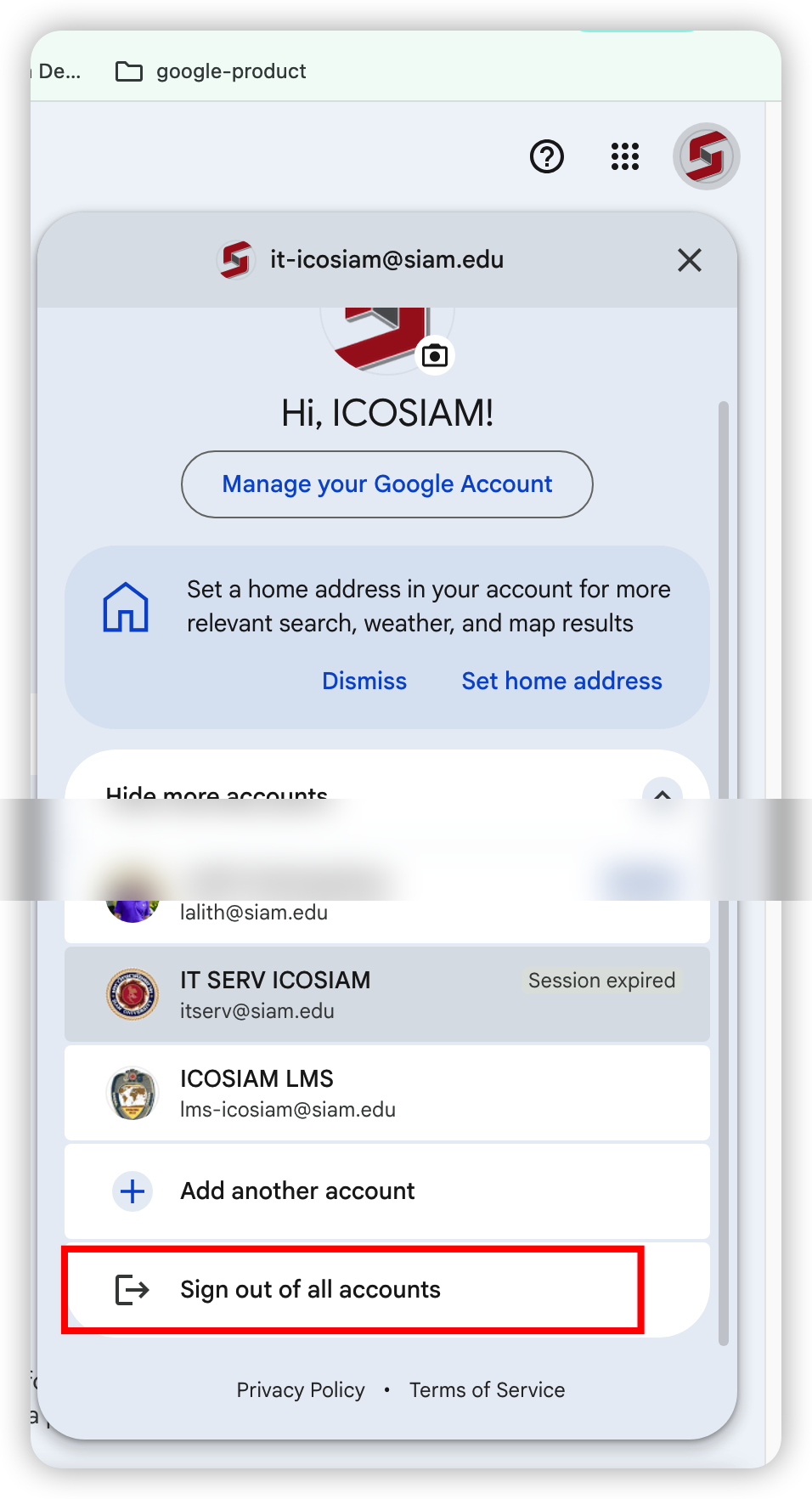
After finishing — Sign out of ALL accounts
- Open a new Chrome tab
- Click your profile icon (top-right corner)
- Click "Sign out of all accounts"
For LecturersLogging Into Moodle
If you have a personal/external account (not @siam.edu), use the username & password form instead:
- Go to https://lmsico.siam.edu
- Enter your personal email as the username and your Moodle password
- Click Log In
Forgot Your Moodle Password?
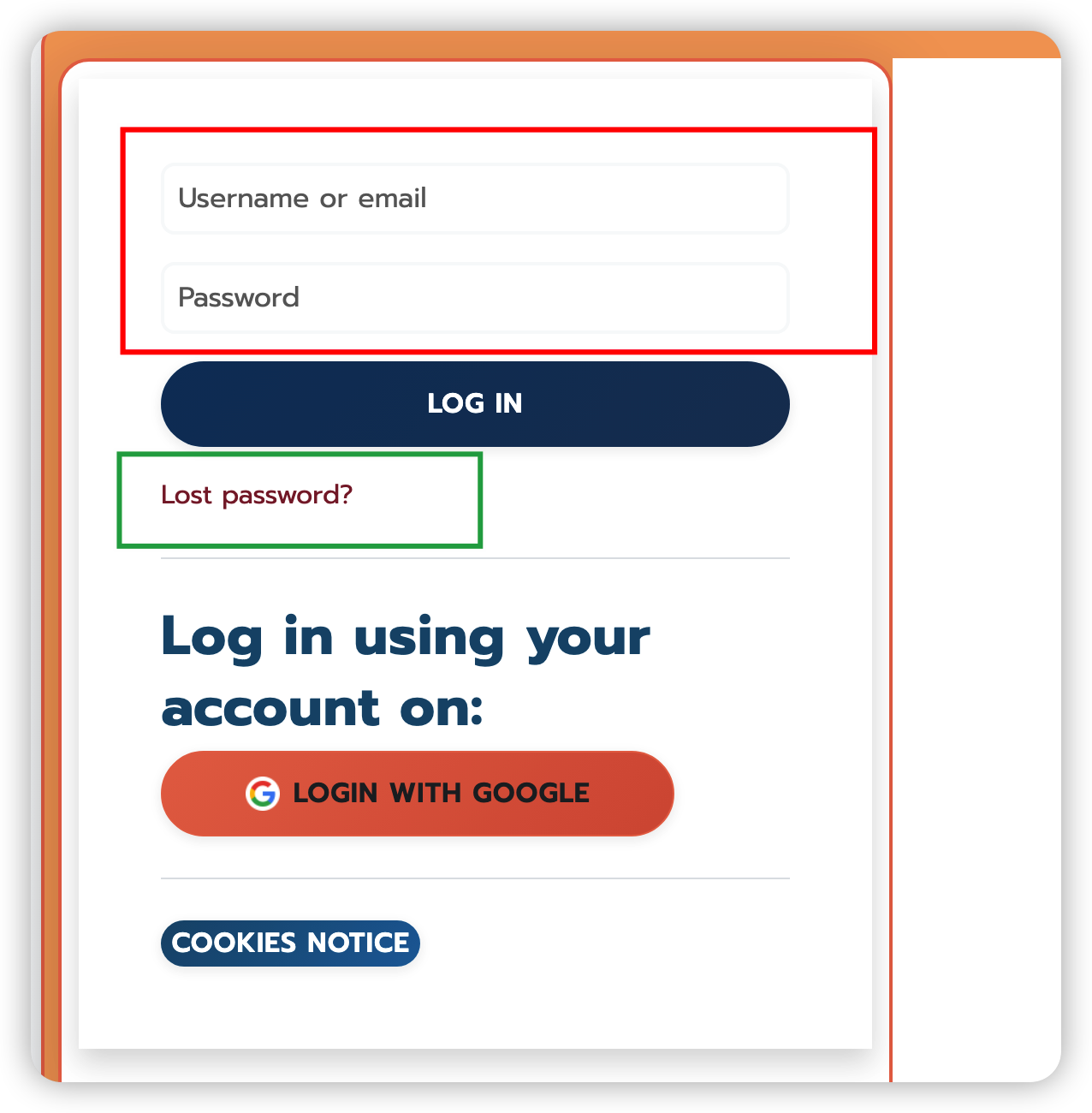
Click "Lost password?" on the Moodle login page
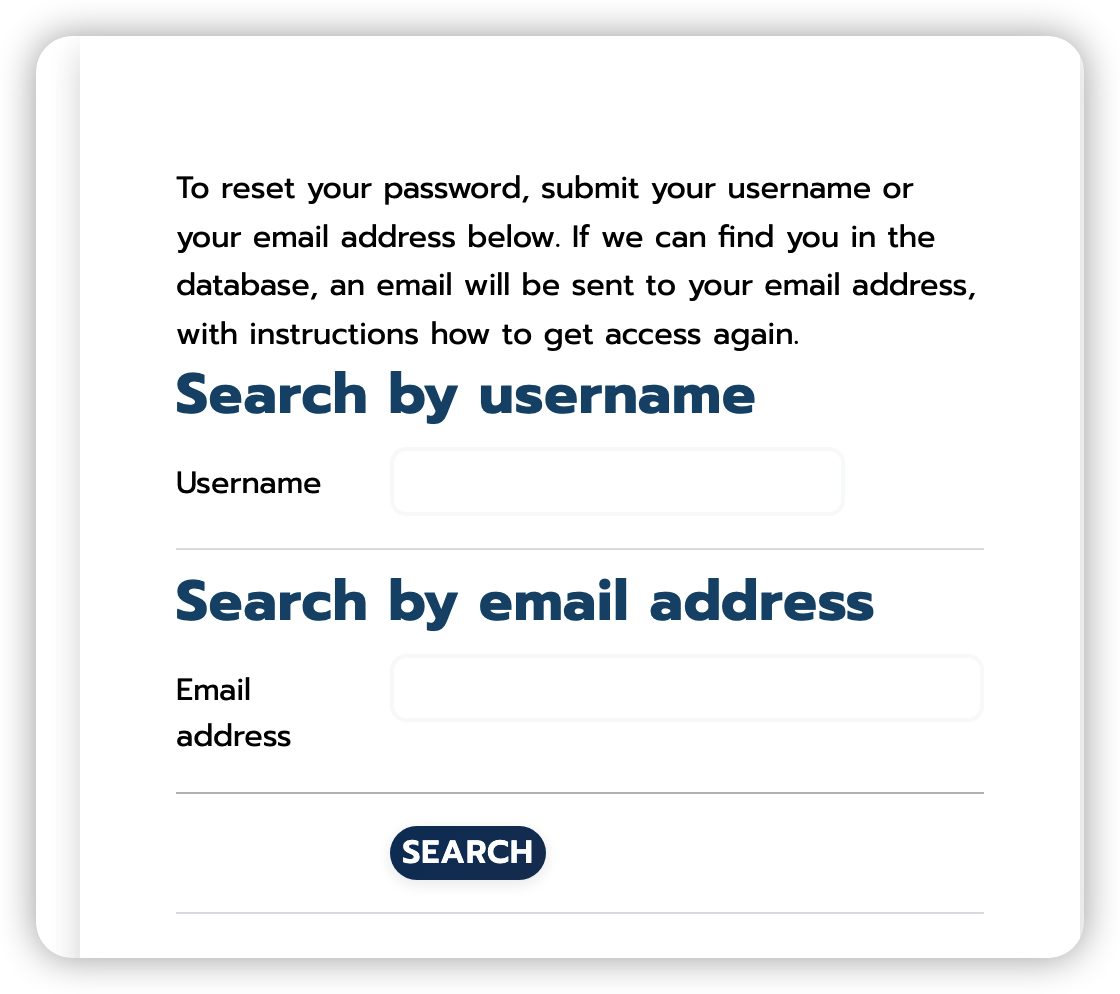
You will see the password reset search form.
Enter your username or email address, then click Search
Use your personal email (the one registered with Moodle).
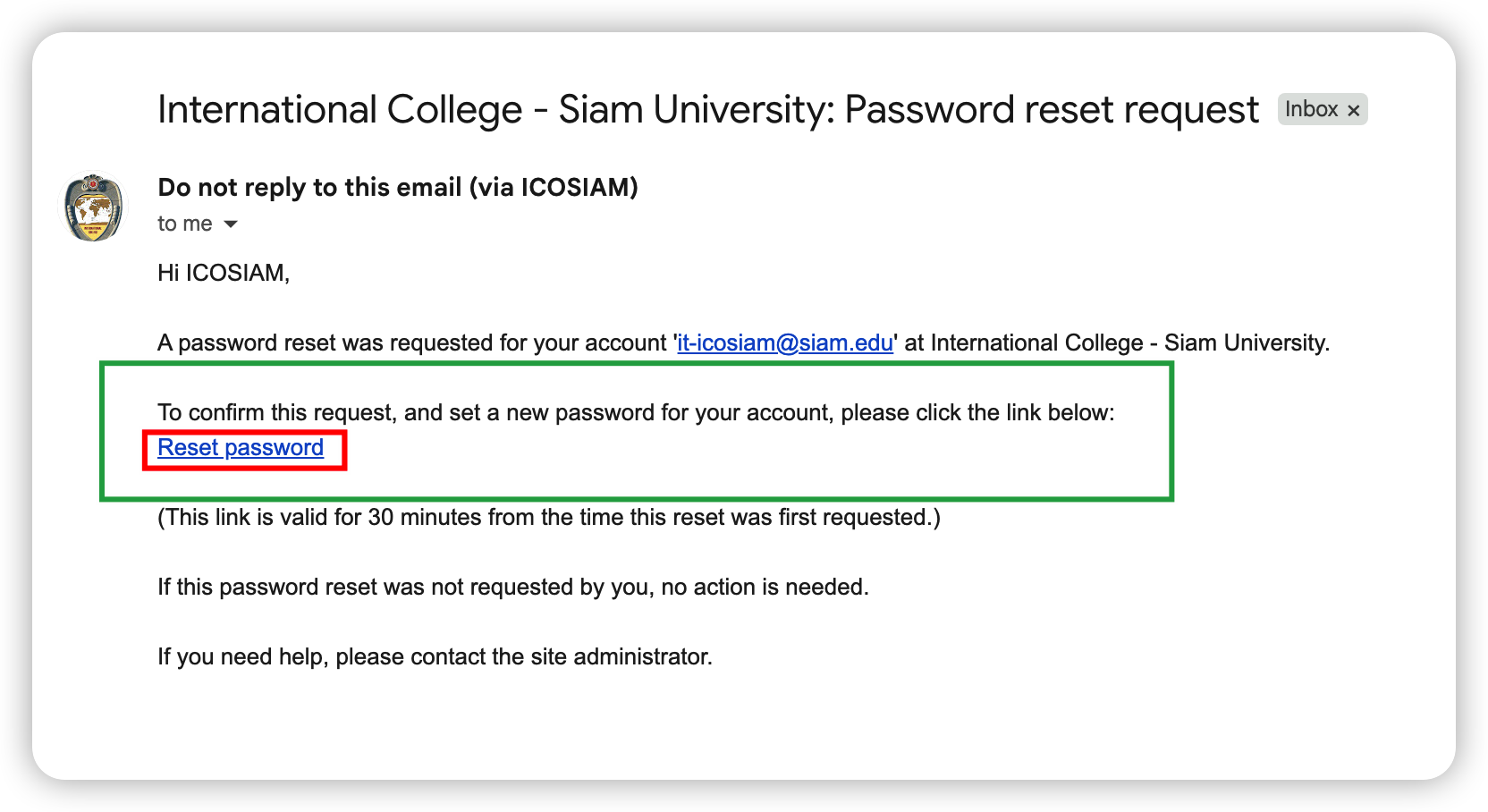
Check your email inbox for a reset link from Moodle
The link is valid for 30 minutes. Check your spam / junk folder if you don't see it.
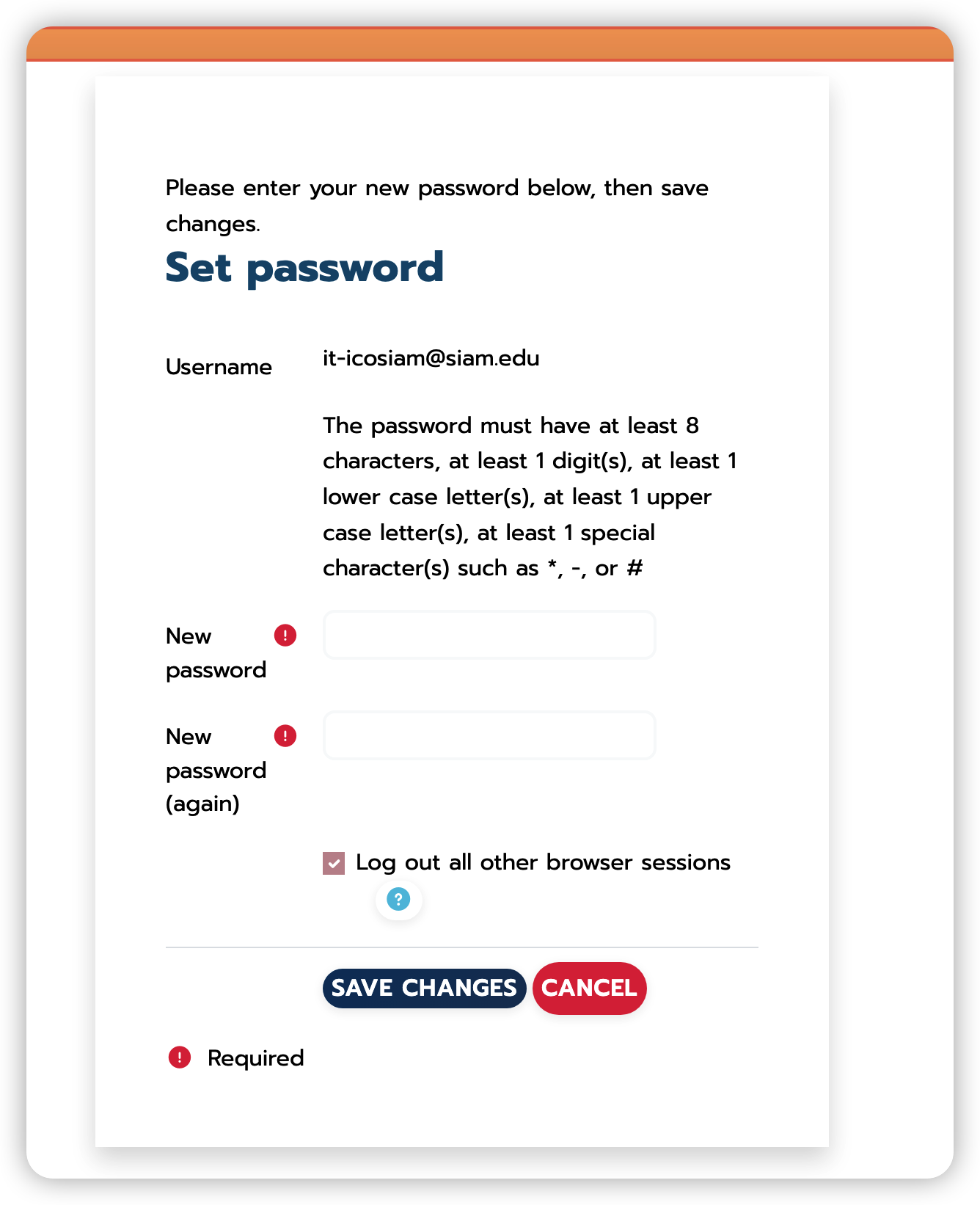
Click the link & create a new password
Password requirements: at least 8 characters, with 1 number, 1 uppercase, 1 lowercase, and 1 special character (e.g. * - #).
Moodle Best Practices — Don't Miss These
Always confirm your assignment submission
After submitting, Moodle shows a green confirmation banner and your submission status changes to "Submitted for grading". If you see "Draft (not submitted)", click Submit Assignment again.
Enable Moodle email notifications
Go to Moodle → Profile (top-right) → Preferences → Notification preferences. Turn on email alerts for:
- Assignment due date reminders
- Forum posts from lecturers
- Grade released notifications
Moodle sends these to your @siam.edu email. Check it regularly.
Never save your password in a lab browser
When Chrome asks "Save password?" on a lab computer — always click Never.
Submit at least 30 minutes before deadline
Moodle locks submissions exactly at the deadline. Leave a buffer for upload speed and file-size limits.
- Max upload size: usually 20 MB per file — compress large PDFs
- Once submitted past the deadline, you cannot edit or resubmit
Magic Link Login
Log in to the ICO Portal with one click — no password needed
How to Use a Magic Link
Check your @siam.edu email inbox
You will receive an email from the ICO system with a subject like "Your secure login link" or "ICO Portal access". Check your Spam / Junk folder if you don't see it within 5 minutes.
Click the "Log in" button in the email
The button takes you directly to the ICO Portal and logs you in automatically. Do not copy-paste the URL — click it directly; some email clients break long URLs.
You are now logged in — complete your task
Your session is active. Navigate the portal normally. The link is single-use — once clicked it cannot be reused. To log in again, use your regular username and password.
Magic Link — Do's
- Click the link on the same device where you want to work
- Use it within the expiry window (15 minutes)
- Check spam if you don't see it in 5 minutes
Magic Link — Don'ts
- Do not share the link — it logs in as you
- Do not forward the email
- Do not click an unexpected link — verify with IT first
- Do not copy-paste the link URL (use the button)
ICOSIAM Mobile App
Your school in your pocket — Android & iPhone
Why do I need the app?
On Android phones, logging into Moodle and university systems using Gmail in a regular browser is blocked. The ICOSIAM app fixes this with a native wrapper that handles authentication properly.
With the app: no login problems, everything works.
What the app gives you
Moodle, ICO Portal, Registration, Online Payment
Outlook, OneDrive, Teams, Office
Gmail, Drive, Docs, Sheets, Slides
Facebook, LinkedIn, TikTok, Instagram, YouTube
How to Install — 2 Easy Steps
Tap the button above → Install
It opens the ICOSIAM app page on Google Play directly. Tap Install — it's free.
Open the app
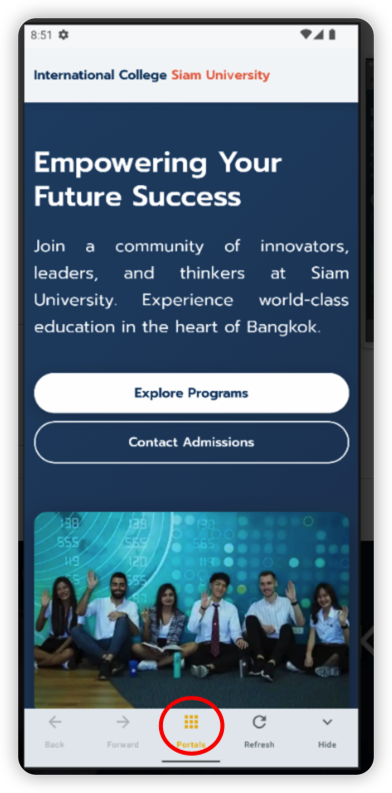
You'll see the ICOSIAM home screen. Tap Portals at the bottom center.
How to Navigate — 4 Taps to Anywhere
Open app → see the ICOSIAM home screen
Tap the Portals button (grid icon) at the bottom center.
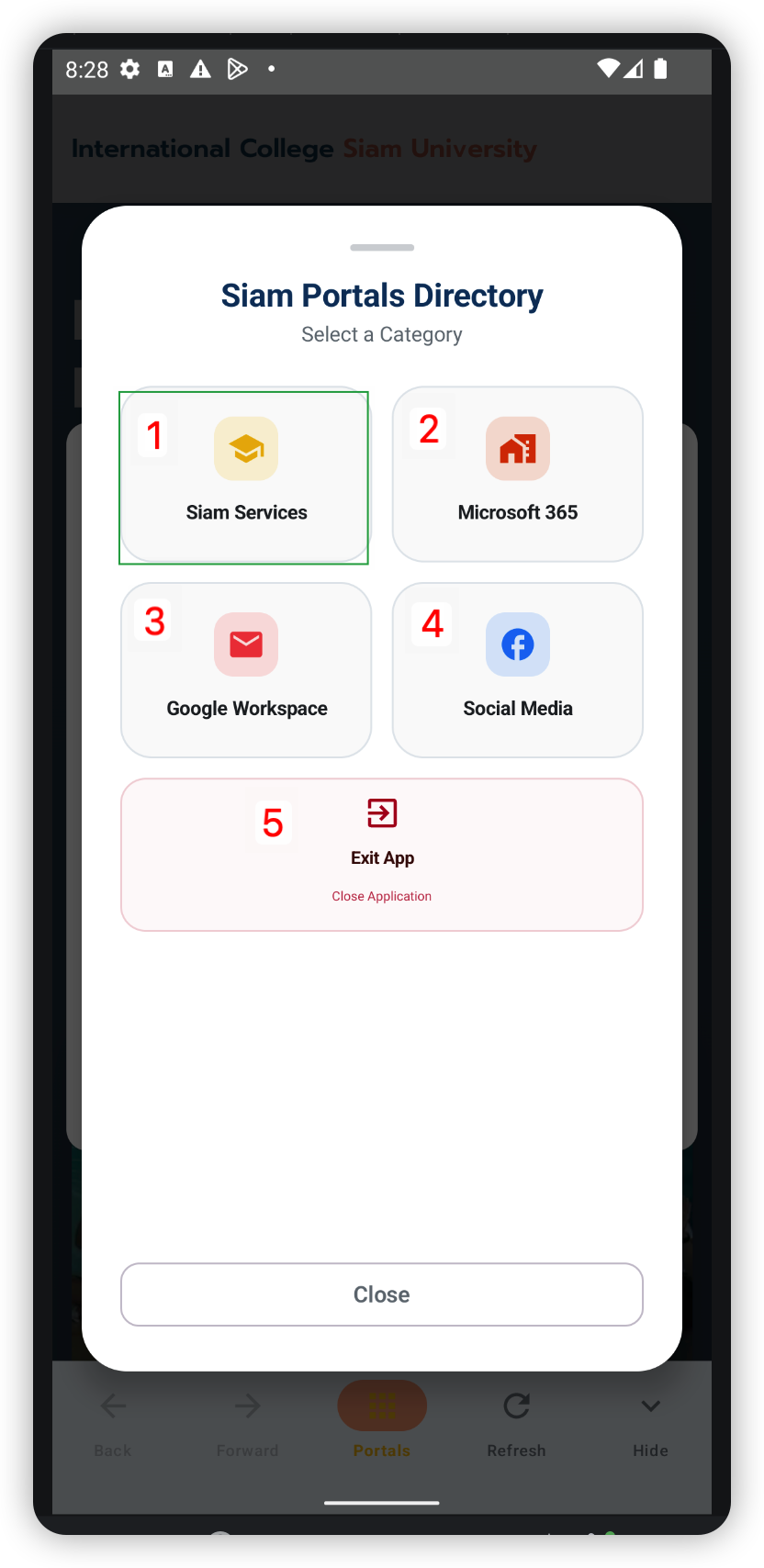
Siam Portals Directory opens
Choose: 1 Siam Services / 2 Microsoft 365 / 3 Google Workspace / 4 Social Media
Select Siam Services for Moodle or Portal
Tap Moodle LMS or ICO Siam Portal.
Log in with your student ID & university password
Forgot password? Email it-icosiam@siam.edu or ask your ICO teacher.
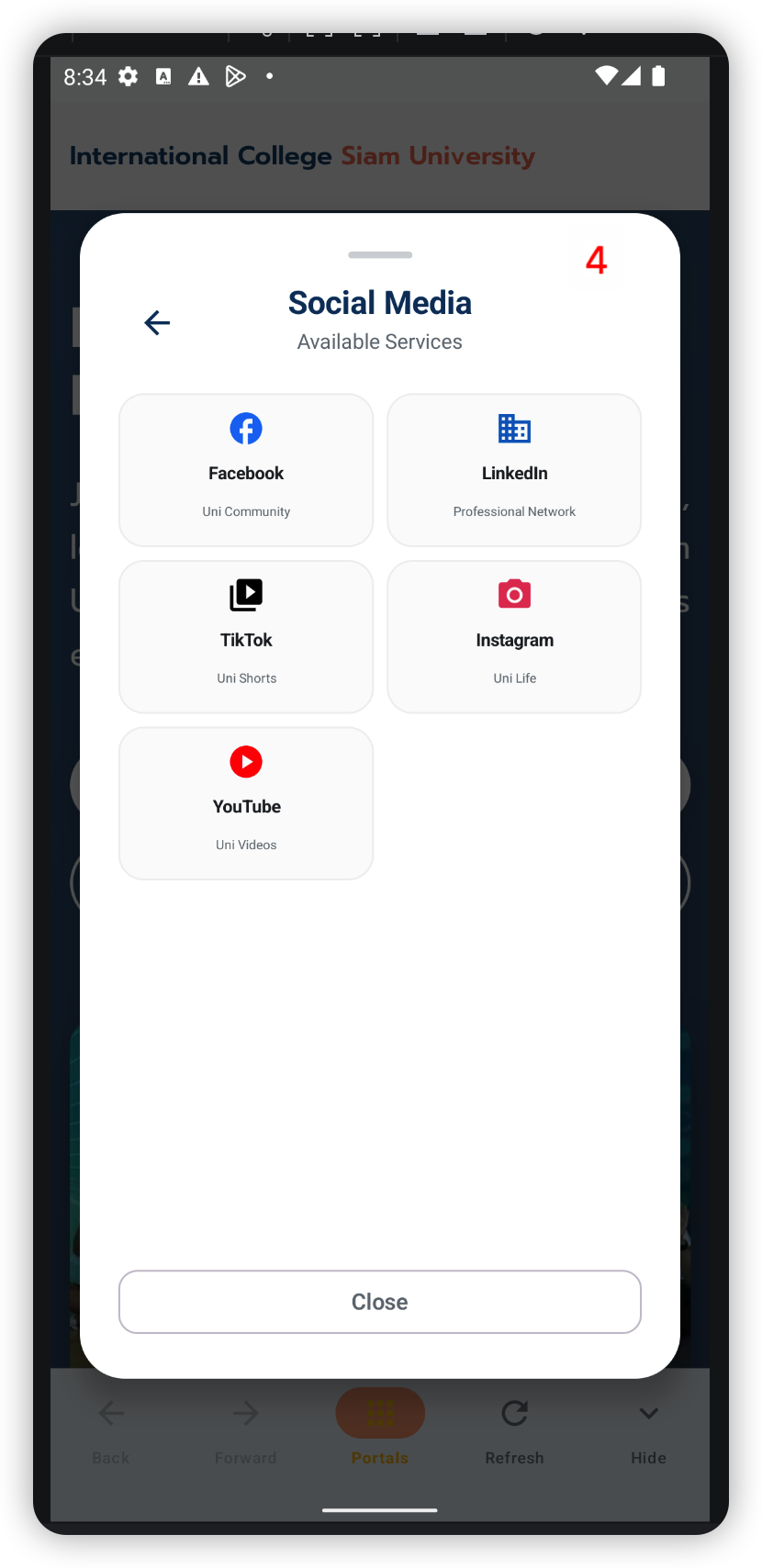
Social Media — Facebook, LinkedIn, TikTok, Instagram, YouTube
- Keep the app updated — open Google Play → My apps → update ICOSIAM. Old versions may lose login access after server updates.
- If login fails after an update: Go to Settings → Apps → ICOSIAM → Storage → Clear Cache (not "Clear Data"), then reopen the app.
- Don't clear app data unless IT tells you to — it resets all saved sessions.
- Notifications: Allow notifications when prompted so you receive Moodle announcements and deadline reminders.
Option 1 — Official Moodle App (Recommended)
- Open the App Store on your iPhone
- Search for "Moodle" and install the official app (blue icon by Moodle Pty Ltd)
- Open the app → tap "Enter your site URL"
- Type:
lmsico.siam.eduand tap Connect - Tap "Login with Google" → sign in with your
@siam.eduaccount
Option 2 — Safari Browser
- Open Safari (not Chrome — Google login works better in Safari on iPhone)
- Go to lmsico.siam.edu
- Tap "Login with Google" → sign in with your
@siam.eduaccount
Microsoft 365
Teams, Outlook, OneDrive, and Office — all included with your student account
@siam.edu credentials.
How to Access Microsoft 365
Go to office.com and click Sign in
Use your @siam.edu email as the username. Microsoft will redirect you to the university login page.
Enter your university password
This is the same password you use for the ICO Portal — not your Google / Moodle password. If you have never logged in before, contact IT to get your initial password.
Access all Microsoft 365 apps from the dashboard
Click the app launcher (grid icon, top-left) to switch between Teams, Outlook, OneDrive, and Office apps.
Microsoft Teams — Class Collaboration
Joining a Class Team
- Open Teams → click "Teams" in the left sidebar
- Click "Join or create a team" (top-right)
- Enter the team code given by your lecturer
- Click Join Team
Joining an Online Class
- Open Teams and go to Calendar
- Find the scheduled class and click Join
- Allow microphone and camera access when prompted
- Click "Join now" to enter the meeting
OneDrive — 1 TB Cloud Storage
All students get 1 TB of OneDrive storage. Use it to:
- Back up your assignments before submitting
- Share documents with lecturers
- Access your files from any device
- Collaborate on Word/Excel/PowerPoint files in real time
Install Teams on Your Phone
- Download Microsoft Teams from the App Store or Google Play
- Sign in with your
@siam.eduemail - Enter your university password
- Enable notifications for class announcements
University Email
Your official @siam.edu email — powered by Google Workspace
How to Access Your Email
On a Computer
- Open Chrome
- Go to mail.google.com
- Sign in with
YourID@siam.edu
On Your Phone (Android)
- Open the ICOSIAM App
- Tap Portals → Google Workspace
- Tap Gmail
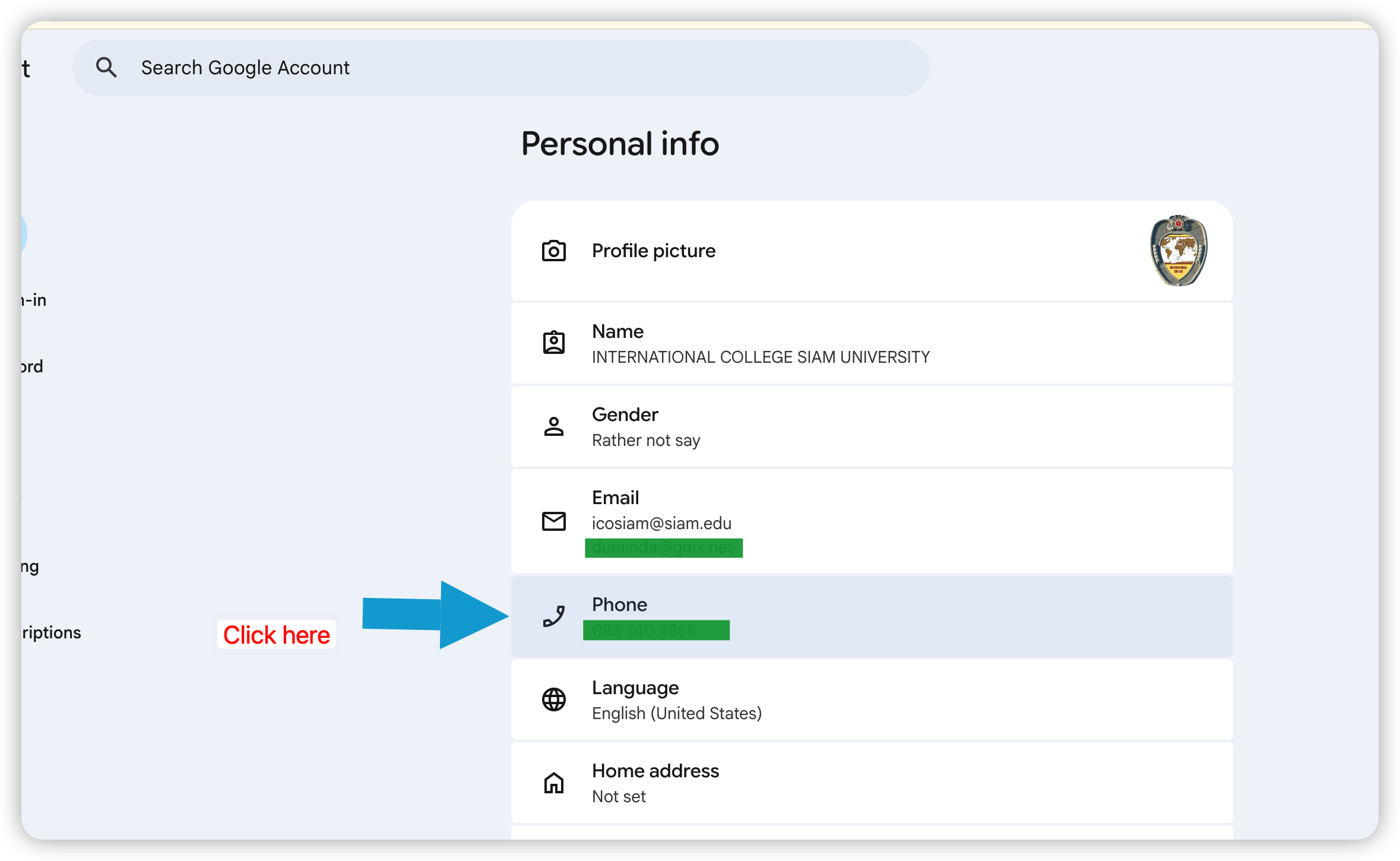
Go to myaccount.google.com
Sign in with your @siam.edu account first.
Click "Personal info" → then "Phone"
Add your personal mobile number here.
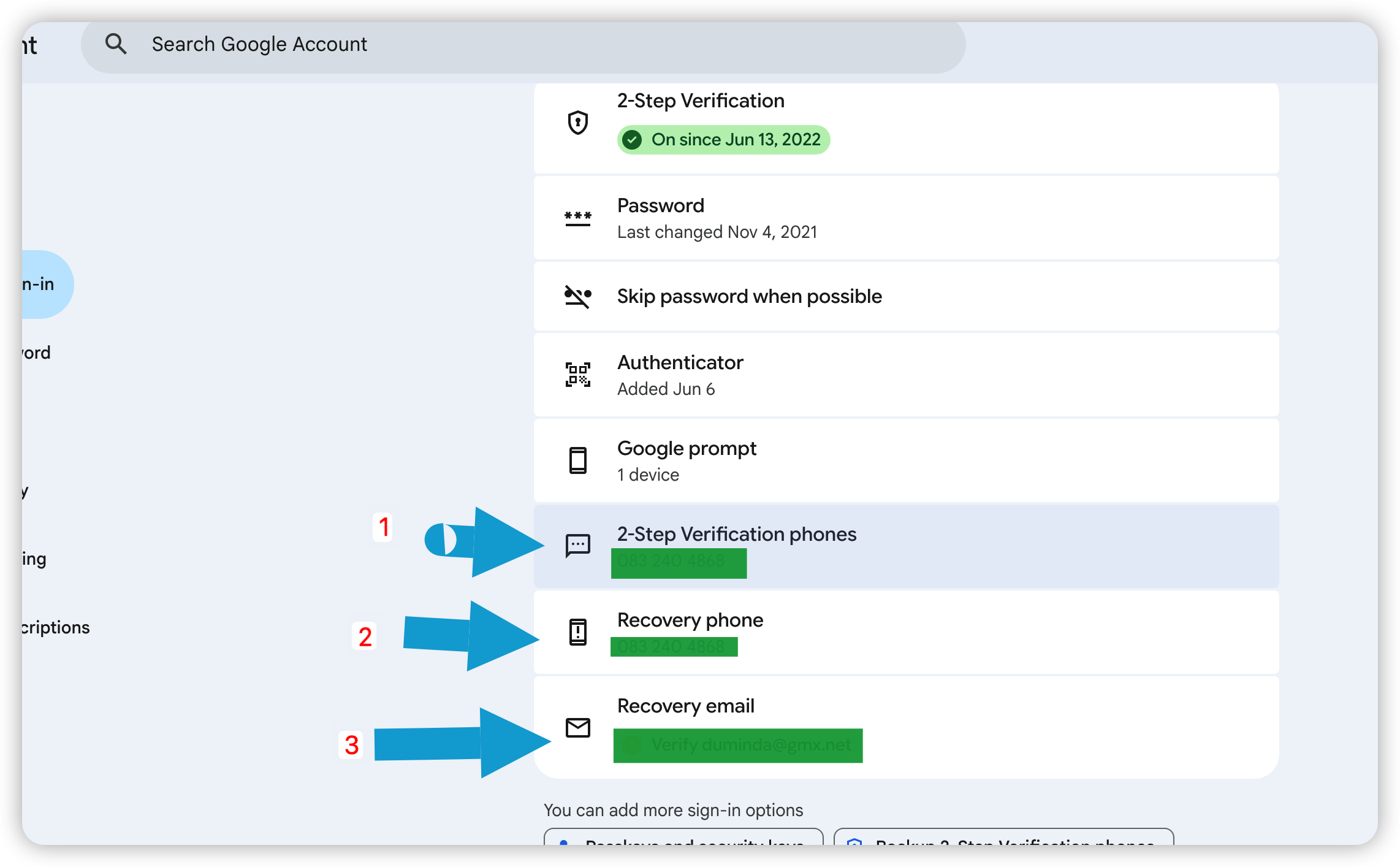
Also click "Security & sign-in"
Add a Recovery phone and Recovery email (your personal email). This is your backup access route.
Add your personal email as recovery email
Two recovery methods = twice the protection.
Go to myaccount.google.com
Sign in with your @siam.edu account.
Click your profile picture at the top of the page
A camera icon will appear — click it, or go to Personal info → Photo.
Click "Change photo" then "Upload a photo"
Choose a clear, front-facing photo. Crop so your face fills most of the frame.
Click "Save as profile photo"
Changes propagate across Moodle, ICO Portal, and ERP within minutes.
- Clear, recent photo of your face only
- Good lighting — no dark or blurry selfies
- No group photos, avatars, or logos
- JPG or PNG, minimum 250 × 250 px
Enable 2-Step Verification
Go to myaccount.google.com/security → 2-Step Verification → Get started. This prevents anyone from logging in even if they know your password.
Always verify you are on the right account
On lab computers, Google may auto-fill a different student's account. Check the profile icon (top-right) before doing anything in Gmail or Drive.
Use Google Drive for assignments
Upload your work to Google Drive before the deadline. Drive files are always accessible — attachments can get lost or corrupted.
Check spam — university emails often land there
Automated emails from Moodle, the ICO Portal, and the admissions system sometimes go to Spam. Check Spam before contacting IT.
ICO Portal / ERP System
Admissions, records, finance, and more
How to Access
On a Computer / Browser
- Go to ico.siam.edu
- Click "Login with Google" using your @siam.edu account
- Or use your assigned username & password
On Your Phone (Android)
- Open the ICOSIAM App
- Tap Portals → Siam Services
- Tap ICO Siam Portal
- Log in with your student ID & password
Frequently Asked Questions
Quick answers to the questions IT receives most often
Still Need Help?
We're here — just reach out
Last updated: June 2026 | ICO IT Team, Siam University International College